
How the driver system works
A quick walkthrough of the driver dashboard — five simple steps from going online to cashing out your earnings.
Driver dashboard — screenshot
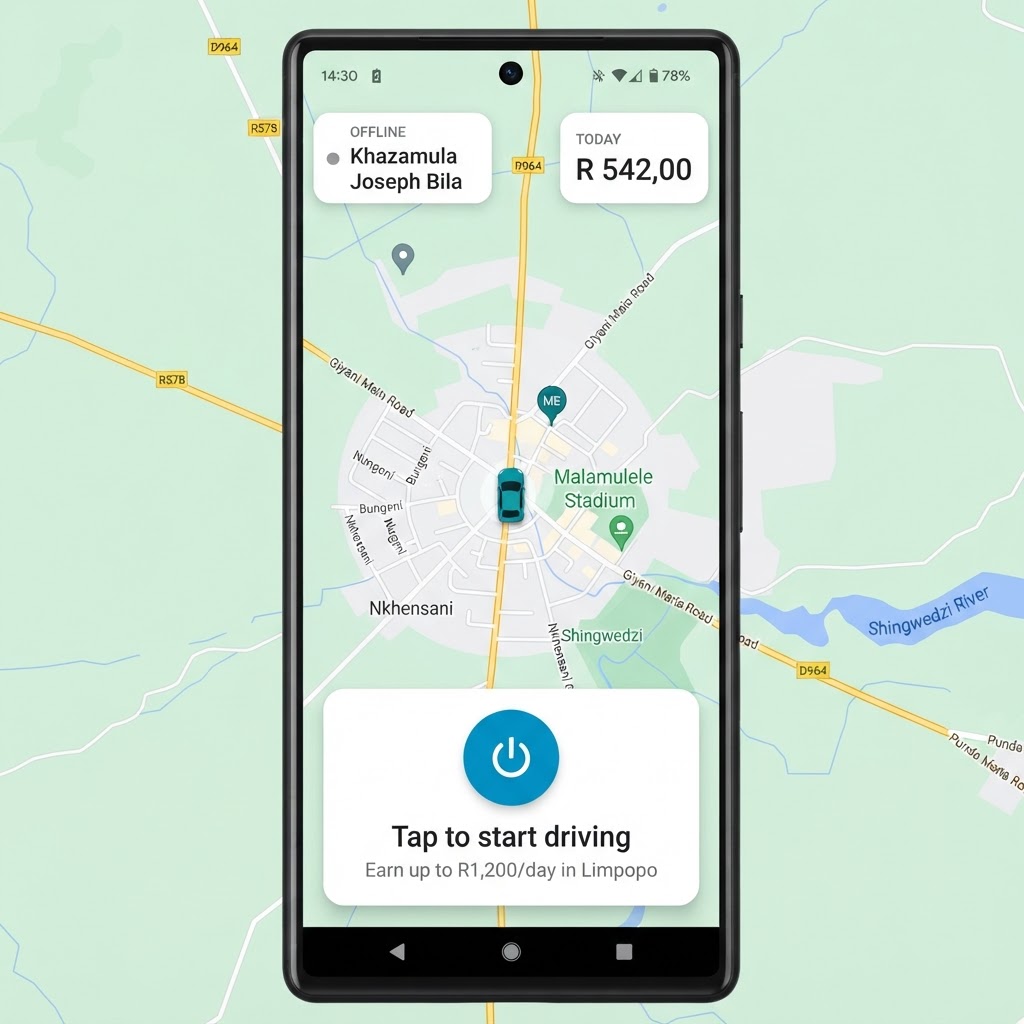
The status card (top-left), today's earnings (top-right) and the power toggle (bottom) are your main controls.
- 1
Go online
Tap the large power button to start receiving ride requests. Your status card flips from Offline to Online.
Top-left card · bottom power button
- 2
Receive a request
A request card appears showing the ride class, fare, trip distance and the passenger's name and rating.
Fare · distance · pickup ETA
- 3
Accept the ride
Tap Accept to take the trip, or Decline to stay available. Accepted trips move to the active trip view.
Accept · Decline buttons
- 4
Navigate to pickup
Follow the map to the passenger, then start the trip once they're in the vehicle.
In-app navigation
- 5
Complete & earn
Tap Complete trip. The fare is added to today's earnings card and your trip total increases.
Today card updates instantly